 DuoVNC
Your Mac, on both screens in your pocket.
DuoVNC is a remote desktop app that adapts to iPhone Duo's outer screen, inner screen and half-folded tabletop mode. Connect to your Mac securely from anywhere with Tailscale.
Free · No account needed · iOS 17 or later
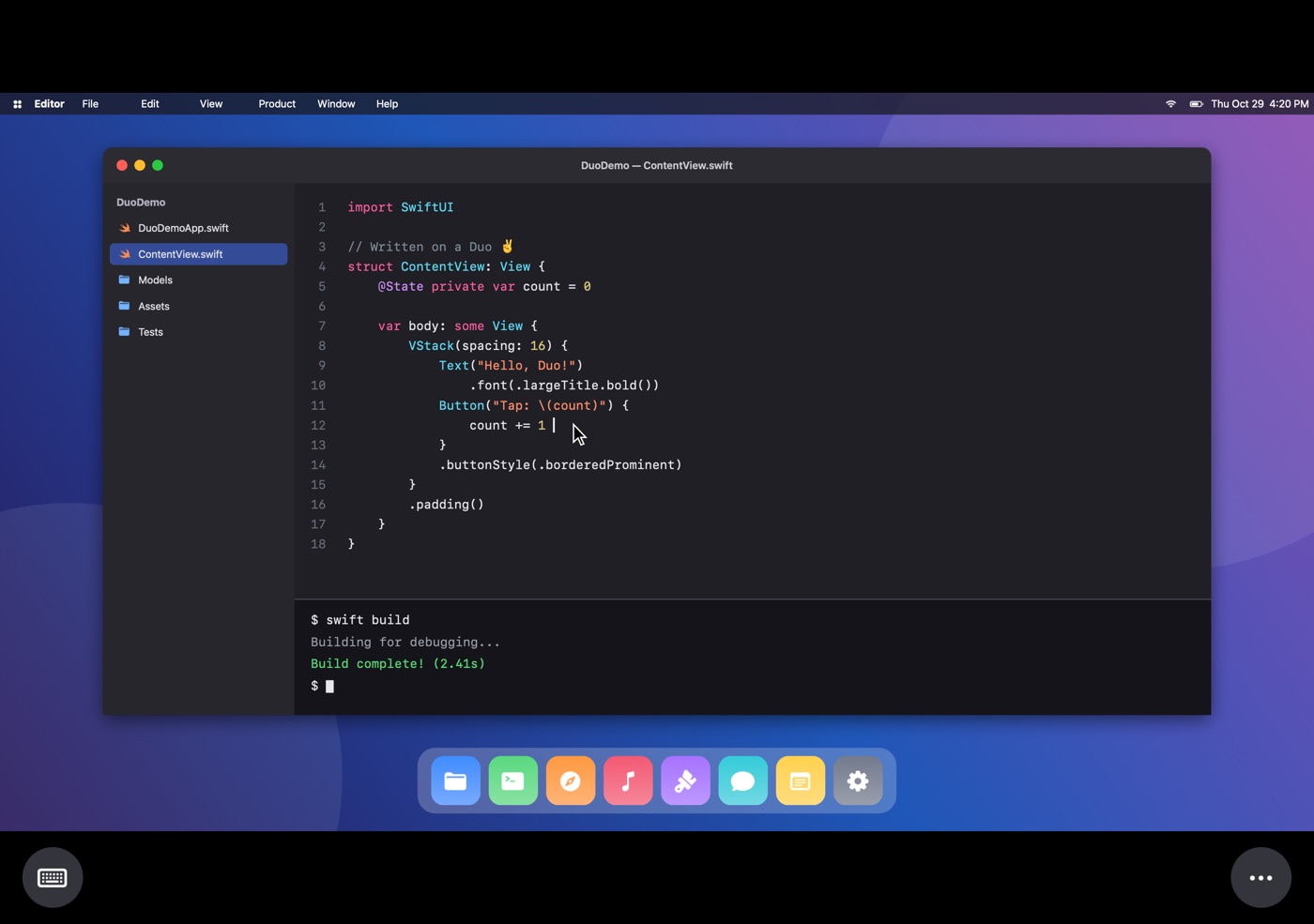
However you hold it, the screen follows.
Fold or unfold and the picture picks up right where you left off; each screen remembers its own zoom.
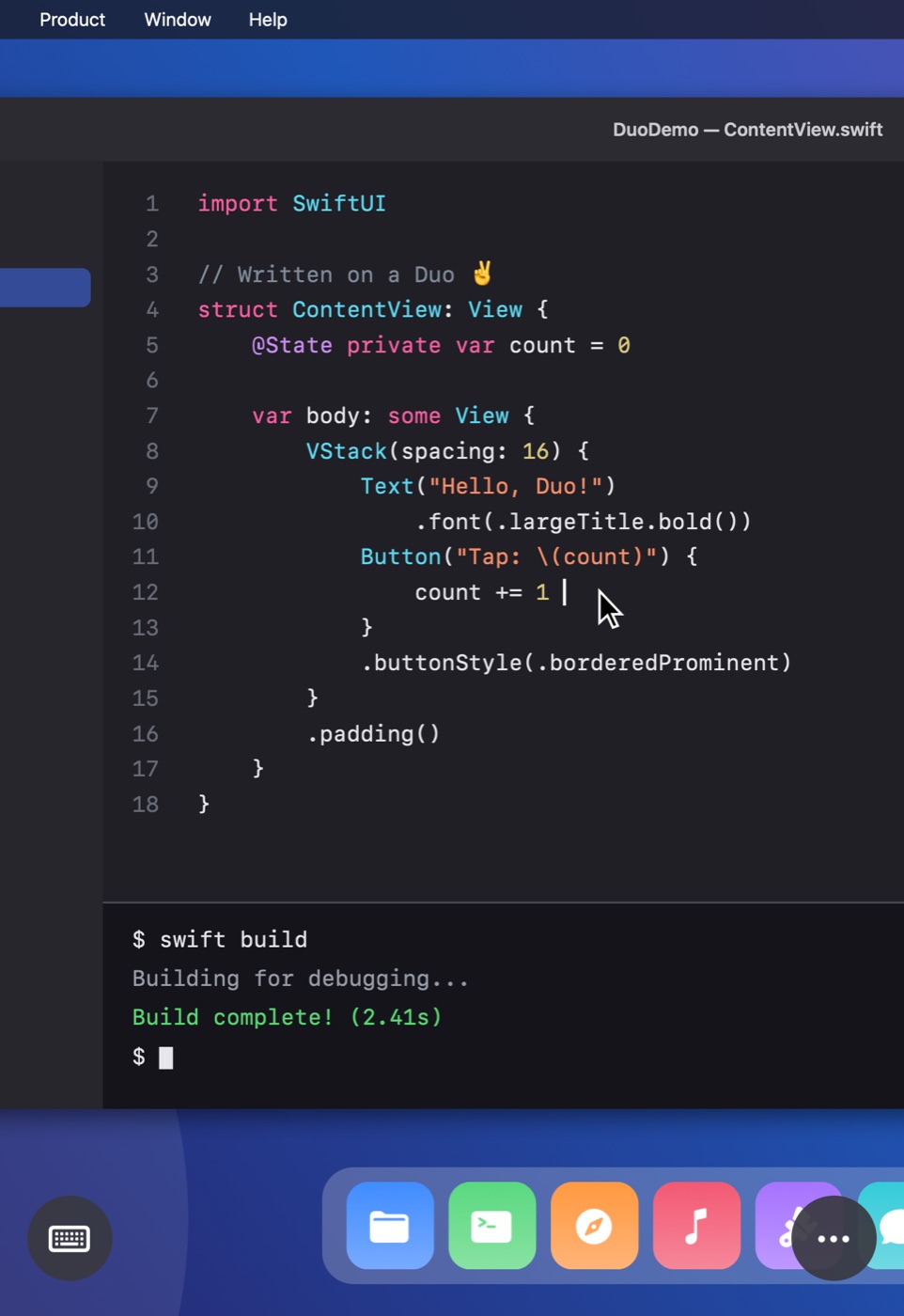
Folded
Quick one-handed control on the outer screen.
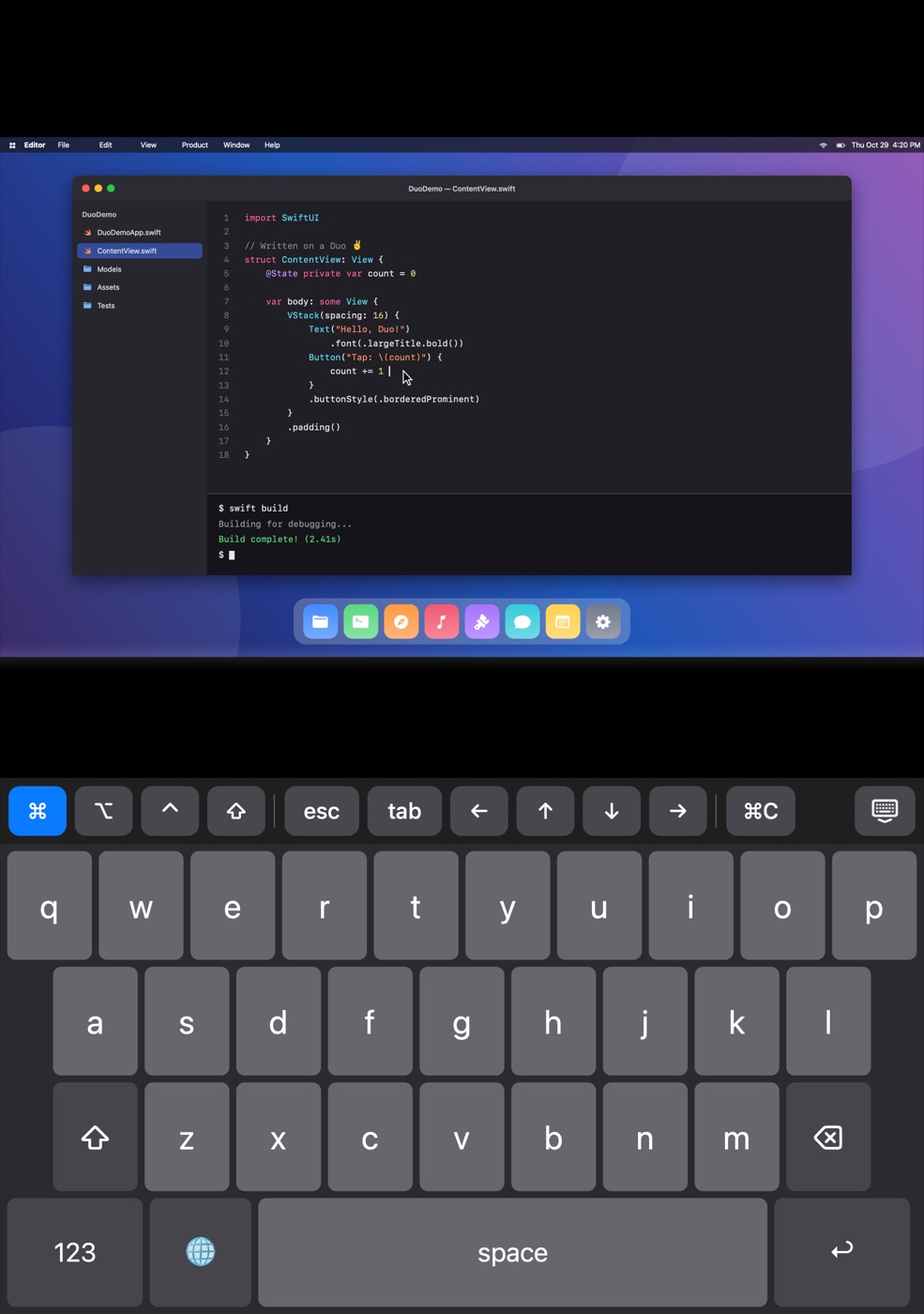
Open
The whole desktop on the inner screen, sharp and smooth.
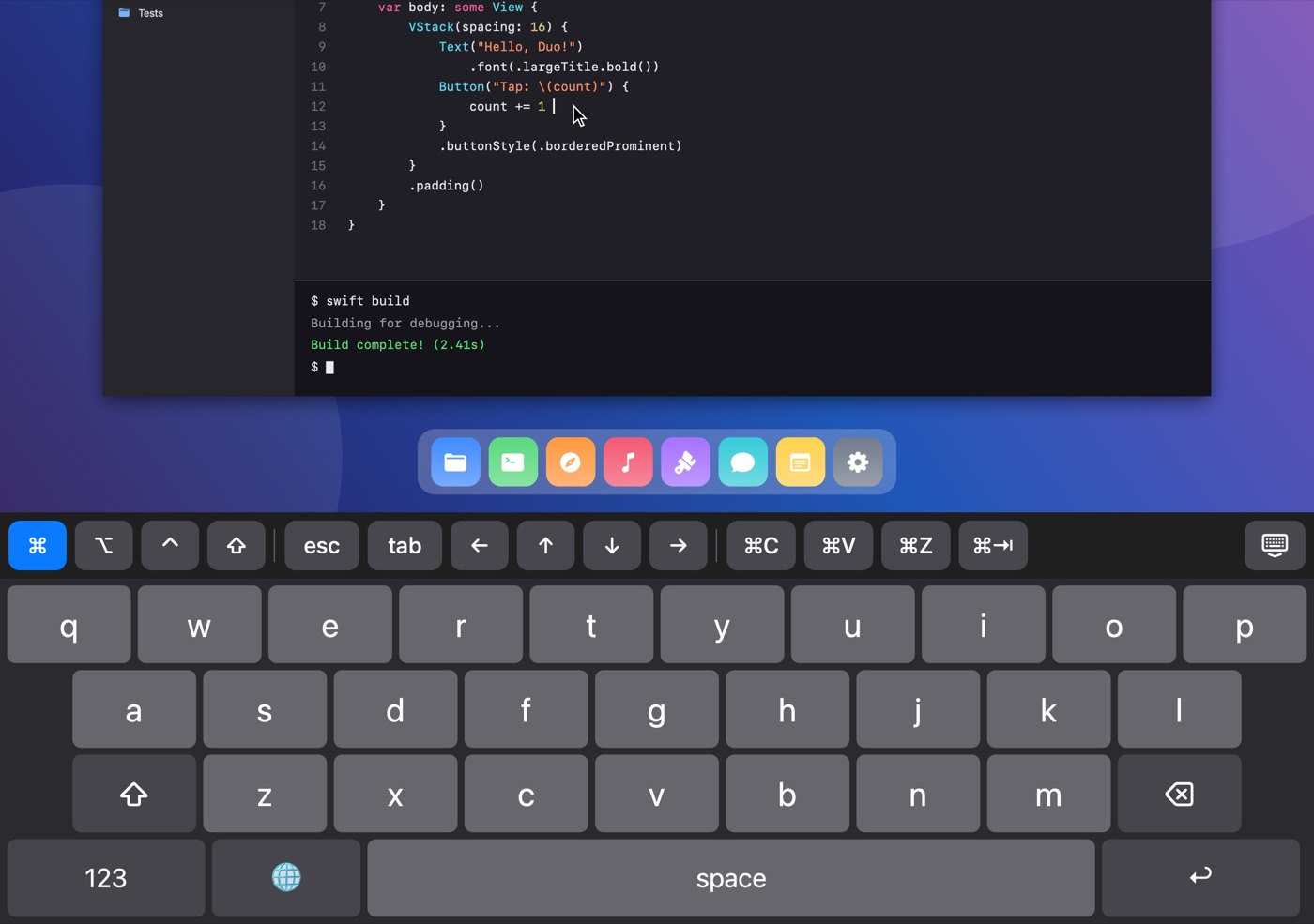
Half-folded
Mac screen on top, keyboard below: a laptop in your pocket.
Everything you need to work from your phone.
From writing code to checking on a server, the details that make remote desktop actually usable.
Smooth display
Drawn straight on the GPU with Metal, with efficient ZRLE/Tight compression; fast even on cellular.
Fold-aware
Senses the hinge angle; half-fold it and the screen moves up while the keyboard settles below.
Trackpad and touch
Glide the pointer like a trackpad or tap directly. Two fingers to right-click and scroll, press and hold to drag.
A real Mac keyboard
Modifier, arrow and function keys one tap away. International characters and hardware keyboard support.
Clipboard and typing
Copy text between your Mac and iPhone; send longer text as keystrokes with "Type Text".
Automatic reconnect
Leave the app and come back, or lose the connection, and your session returns on its own.
No port forwarding, no router setup.
With Tailscale on your Mac and iPhone, DuoVNC connects straight to your Mac's private network address. There's no server of ours in between; the connection runs only between your two devices.
- Works with macOS Screen Sharing, no extra server software
- Sign in with your Mac username and password (Apple Remote Desktop authentication)
- Passwords stay in your device's Keychain only
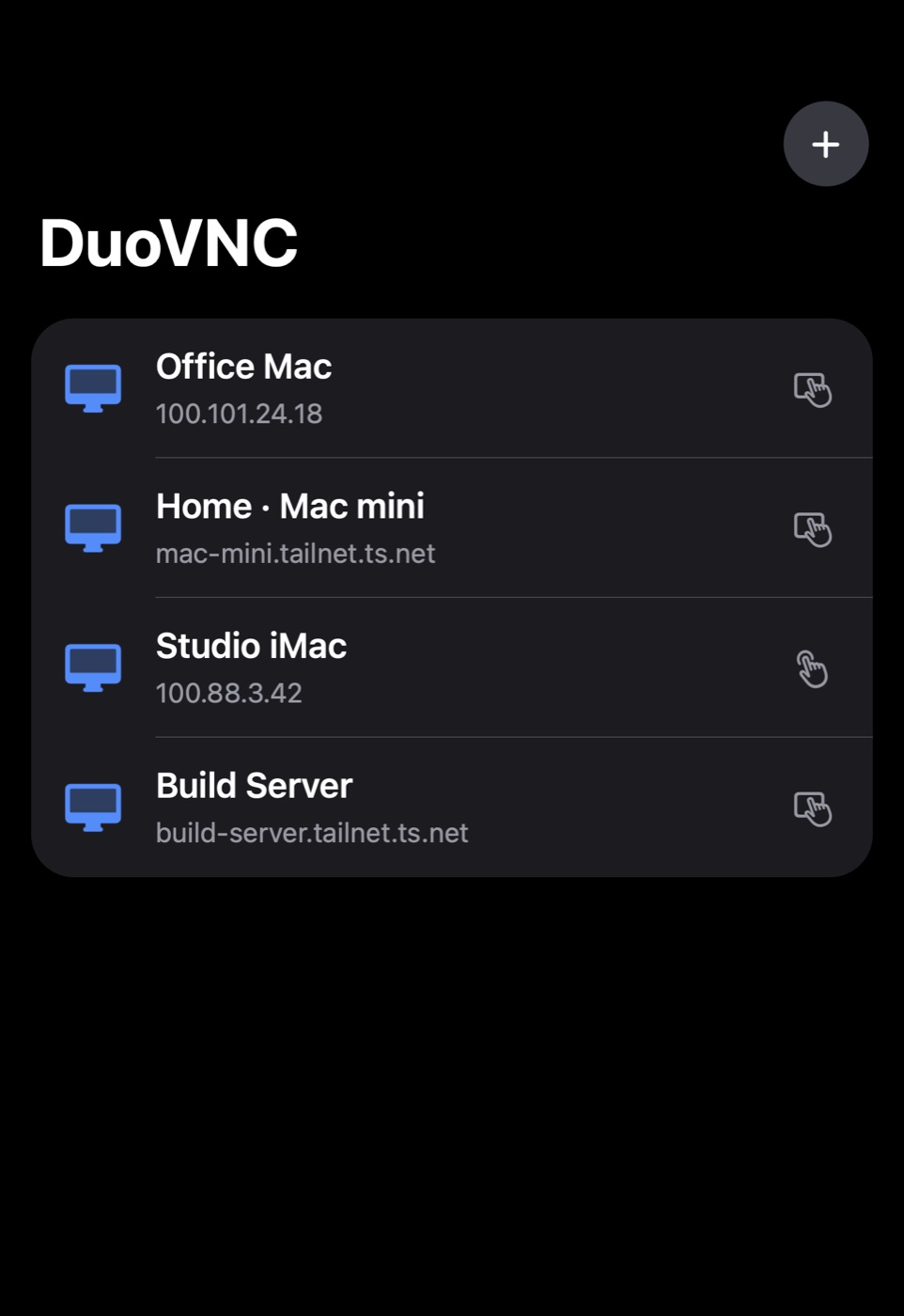
- Save several Macs and connect with one tap
No account. No servers. No tracking.
DuoVNC doesn't collect any personal data or send it to us. Your screen flows only between your own devices.
Ready in four steps.
On the Mac side, all you need is the built-in Screen Sharing.
Turn on Screen Sharing
On your Mac, open System Settings › General › Sharing › Screen Sharing and give your user access.
Install Tailscale
Install Tailscale on your Mac and iPhone and sign in with the same account.
Add a connection
Tap + in DuoVNC and enter your Mac's Tailscale address (100.x.y.z) and port 5900.
Connect
Tap the connection and sign in with your Mac username and password. That's it.
Frequently asked questions
I can't connect. What should I do?
Make sure Screen Sharing is on for your Mac, Tailscale is connected on both devices and the address is correct. If iOS asks for local network access, allow it (Settings › Privacy & Security › Local Network).
Which password should I enter?
The username and password you use to sign in to your Mac. If you choose to save it, the password is stored only in your iPhone's Keychain and isn't backed up to iCloud.
Can I use it without Tailscale?
Yes. On the same Wi-Fi network you can connect with your Mac's local IP address. For access away from home we recommend Tailscale.
Can I connect to Windows or Linux?
DuoVNC uses the standard VNC protocol, so it can also connect to computers running a password-protected VNC server. It's primarily tested with macOS Screen Sharing.
Does it work on other iPhones?
Yes, DuoVNC works on every iPhone running iOS 17 or later. Folding and tabletop mode are specific to iPhone Duo.
The clipboard isn't working.
macOS Screen Sharing sometimes doesn't transfer the clipboard. In that case, use "Type Text" in the toolbar to send text directly as keystrokes.